Guides
How to Trade Items With Friends on Steam (Step-by-Step Tutorial)
TrexHub Team
September 7, 2025
5 min read
Once you know how to trade on Steam, you can swap tradeable games with friends; this way, you do not need to spend money to get a feel of a new game. It is just like trade by barter from the olden days, except this time with multiplayer games.

đź“„
Guides
How to Trade Items With Friends on Steam (Step-by-Step Tutorial)
" data-mobile-support="0" data-gt-translate-attributes="[{"attribute":"data-cmtooltip", "format":"html"}]">Steam
.Â
However, every Steam user also knows that most of the best games aren’t free, and you need funds to buy them. Funds you may not necessarily have. But there’s a way out.
Aside from using Steam gift cards to get cheaper prices for games on Steam, another less expensive way is to trade your games with friends. Those extra copies of multiplayer games that are tagged as tradeable.
Once you know how to trade on Steam, you can swap tradeable games with friends; this way, you do not need to spend money to get a feel of a new game. It is just like trade by barter from the olden days, except this time with multiplayer games.Â
Interested in learning how to trade on Steam with friends? Then continue reading!
What are the Requirements for Trading Items on Steam
Before you start trading on Steam, there are a few things you need to put in place: enable Steam Guard, get your Steam Trade URL, and add the friends you want to trade with.
1. Enable Steam Guard for at Least 15 days
Both you and your friend must have Steam Guard enabled for at least 15 days before trading. Think of it like a A security process in which the user provides two different authentication factors to verify themselves.
" data-mobile-support="0" data-gt-translate-attributes="[{"attribute":"data-cmtooltip", "format":"html"}]">two-factor authentication; Steam Guard is a security feature required for trading.Â
Steam added this feature to protect your account from falling into the wrong hands.
You can set up/enable Steam Guard in two ways: by email (default) or through Steam Mobile Authenticator. I recommend using the mobile authenticator because it is safer and more reliable.
How to Set Up Steam Guard Mobile Authenticator:
1. Log in to your Steam mobile app.
2. Select “Steam Guard” from the left menu.
3. Tap “Add authenticator”.
4. Add your phone number. An authentication key will be sent to you via SMS.
5. Enter the authentication key sent to your phone.Â
Steam will give you a recovery code. Keep it safe and don’t share it with anyone. You’ll only need your recovery code if you ever lose access to your Steam account or mobile authenticator.
From now on, whenever you log in to your Steam account on a new device or browser, Steam will ask for a 6-digit code from the Steam Mobile App (under the Steam Guard section). You don’t need this code to open the app itself, only when you’re signing in to your Steam account somewhere else.
2. Obtain Your Steam Trade URL:
You need to get your Steam Trade URL before adding the friends you want to trade with. Without the Steam Trade URL, your friends cannot send you trade offers.Â
How to Find Your Steam Trade URL:
1. Navigate to your profile.
2. Select “A feature within the Steam platform where users can view and manage their owned in-game items and games.
" data-mobile-support="0" data-gt-translate-attributes="[{"attribute":"data-cmtooltip", "format":"html"}]">inventory.”
3. Click “Trade Offers.”
4. Choose “Who can send me trade offers?”Â
You can find your Steam Trade URL under Third-Party Sites. You can copy the link to share with friends.
3. Add Friends You Want to Trade With:
Keep in mind that Steam only allows you to trade with users on your friend list. To trade with more people, you need to add more friends to your list.
How to Add More Friends to Your Steam Friend List:
1. Navigate to the community tab.
2. Search for your friend’s username.
3. Send them a friend request.
4. Once they accept your request, you will be able to trade
Expert Tip: To avoid trade or market restrictions, use the same device to log in for at least 7 days before trading. Also, make sure your account isn’t limited. Steam requires you to spend at least $5 to unlock full trading features and block scammers.
How to Trade on Steam With Friends
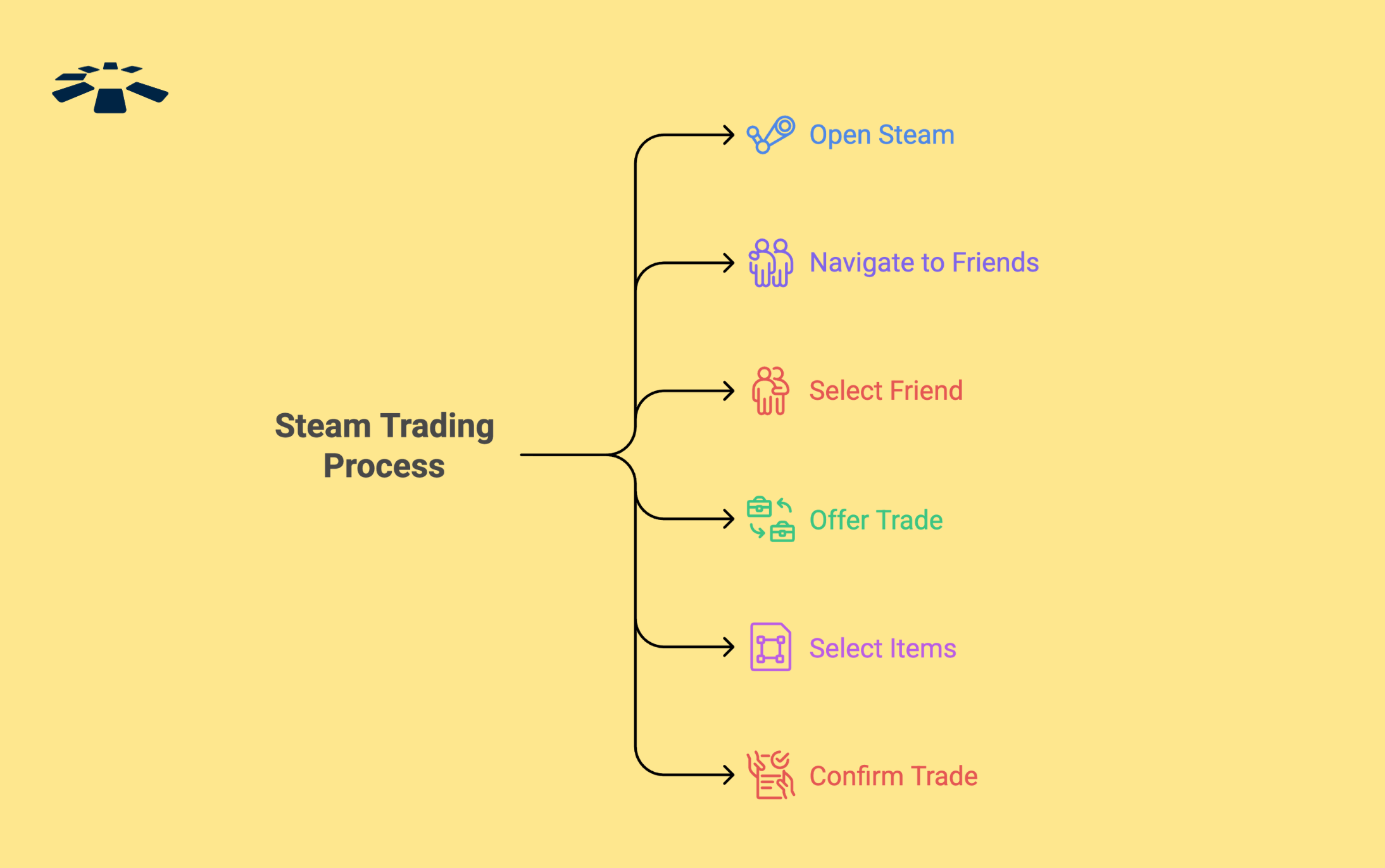
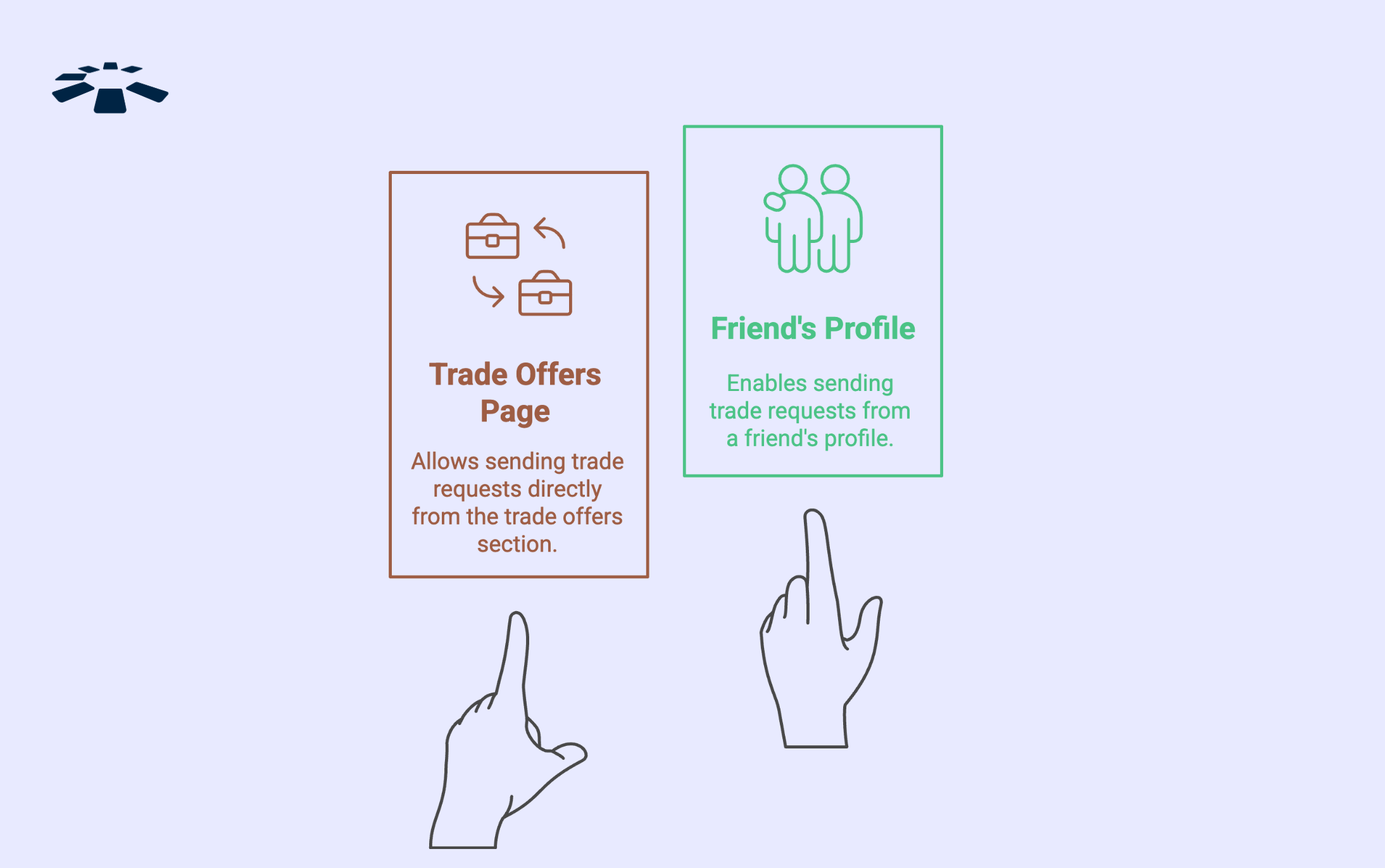
Once you’ve set up Steam Guard, got your Trade URL, and added friends, you’re ready to start trading. You can send a trade offer in two ways: from your Trade Offers page or directly from a friend’s profile.

1. How to Send an Offer from Your Trade Offers Page:
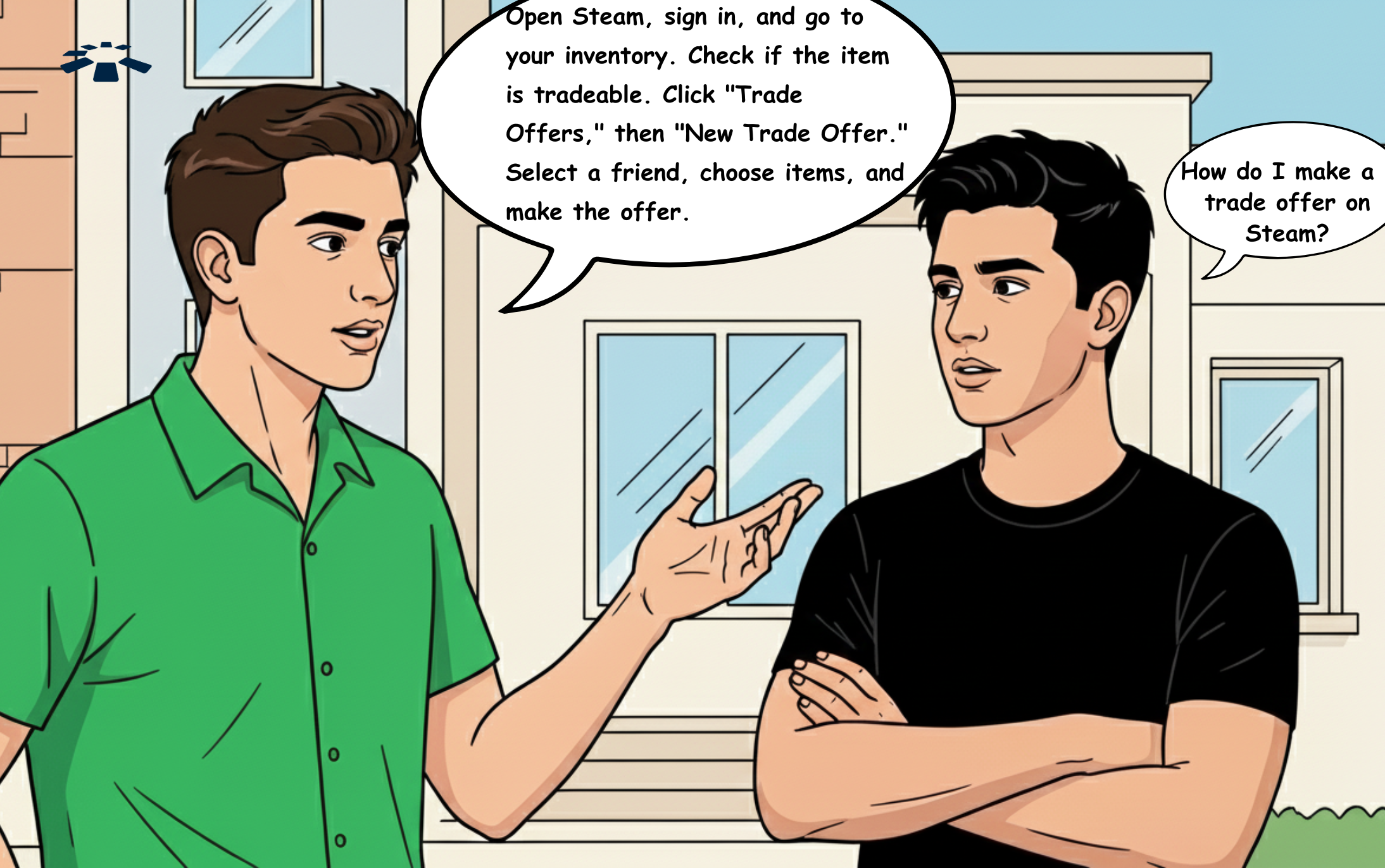
Open your Steam app, sign in, and choose inventory from your profile. Confirm if your item is tradeable. Click on trade offers, and select new trade offer. Pick a friend to trade items with, select your desired items, and make the offer.

1. Open your Steam application or go to the Steam website and sign in.
2. Go to your profile at the top left or right of your screen and hover over it until a list of options drops.
3. Select Inventory. Please ensure the game or item you intend to trade is tradeable.Â
4. On inventory, click on “Trade Offers.”
5. Then select “New Trade Offer.”
6. Select the friend you intend to trade items with from your friend list.
7. Click and drag items from the inventories to the trade boxes.
8. Check the box to confirm the trade content.
9. Click on “Make Offer.”
A trade offer will be sent to your friend, who can choose whether to accept or deny it.
2. How to Send an Offer From a Friend’s Profile:
Open your Steam app. Hover over your profile. Select friends. Choose friends to trade with. Tap the “…” button and click on “offer a trade.” Drag desired items from inventories to trade boxes. Confirm and make the offer.

1. Open the Steam app or website and log in.
2. Move your mouse pointer over your profile until the menu drops.
3. Select “Friends.”
4. Choose the friend you’d like to send a trade offer to and press the “…” button.
5. Click on “Offer a Trade.”
6. Select and drag the items you wish to trade from both inventories into the trade boxes.
7. Check the box to be sure those are your intended trade contents.
8. Make the offer.
I usually find it easier to send trade offers straight from a friend’s profile rather than going through my Trade Offers page every time. Once you hit “Make Offer”, your friend instantly gets a Steam notification that you want to trade, and they can either accept or reject it on the spot.
But let’s flip it around for a second. Imagine your friend reads this guide before you and sends you a trade offer first. Now you’re on the receiving end. What happens then? Simple. You can either accept it as it is or change things up with a counteroffer. Here’s how.
How to Change or Counter an Offer on Steam
Go to your Inventory and open “Trade Offers”. Click on “Incoming Offers,” then select “Respond to Offer”. From there, choose “Change Offer”, edit the items however you like, review the trade, tick “Confirm Trade Contents”, and finally click “Send Counter Offer”.
1. From your inventory, select “Trade Offers”.
2. Click on “Incoming Offers.”
3. Select “Respond to Offer.” You can either accept the offer or change it.
4. Choose “Change Offer”.Â
5. Adjust the items in the trade boxes however you want.
6. Double-check everything and confirm the trade contents.
7. Click “Send Counter Offer.”
Steam will then send your changes back to your friend as a brand-new trade offer. They’ll see your updated terms and can decide whether to accept or counter again.
Items You Can (and Can’t) Trade on Steam
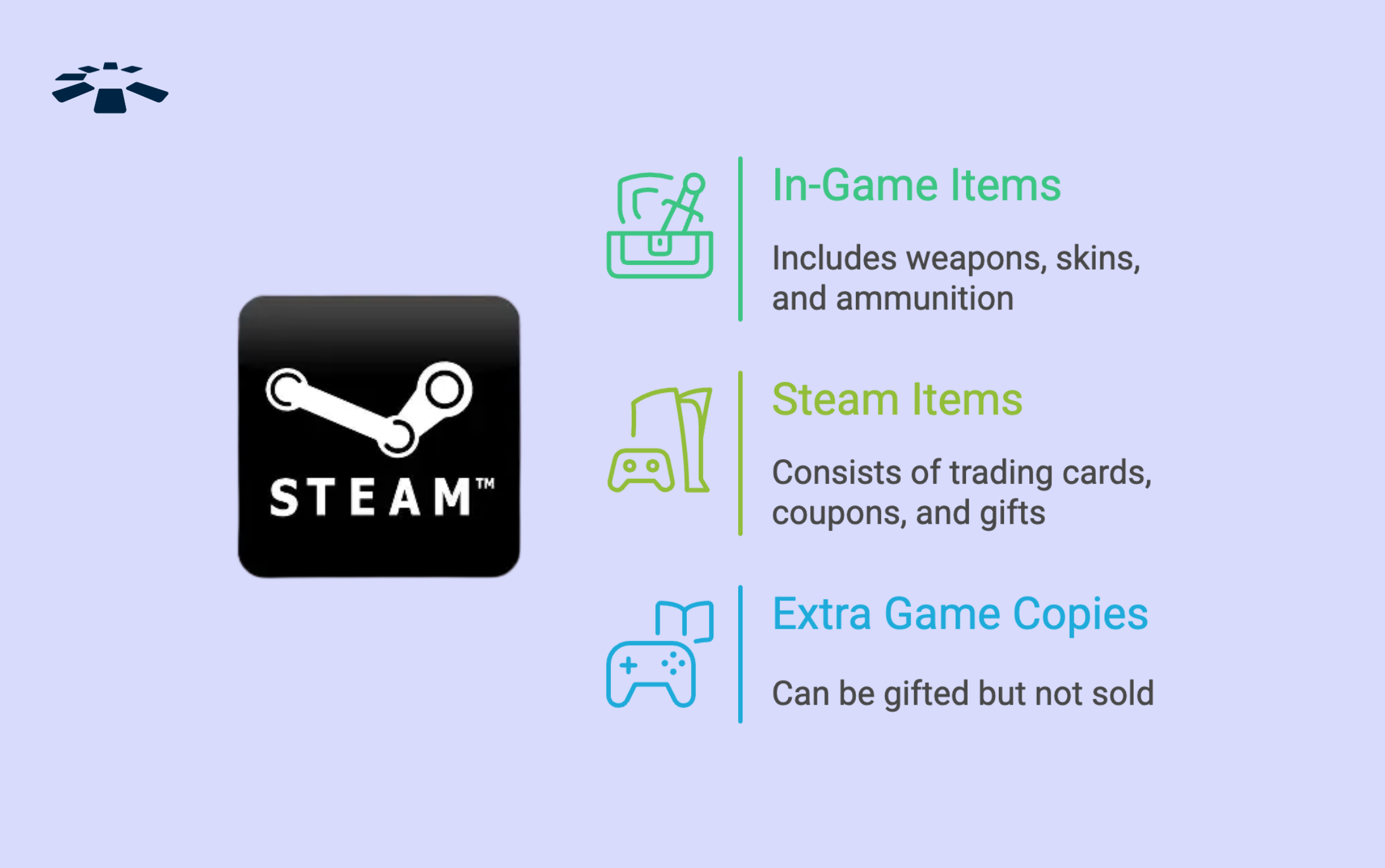
Generally, Steam allows you to trade Virtual goods or enhancements that players can purchase or earn within a video game, such as weapons, skins, or power-ups.
" data-mobile-support="0" data-gt-translate-attributes="[{"attribute":"data-cmtooltip", "format":"html"}]">in-game items, Steam items, or extra copies of games. In-game items include weapons,Â
, and ammunition. Steam items include SteamÂ